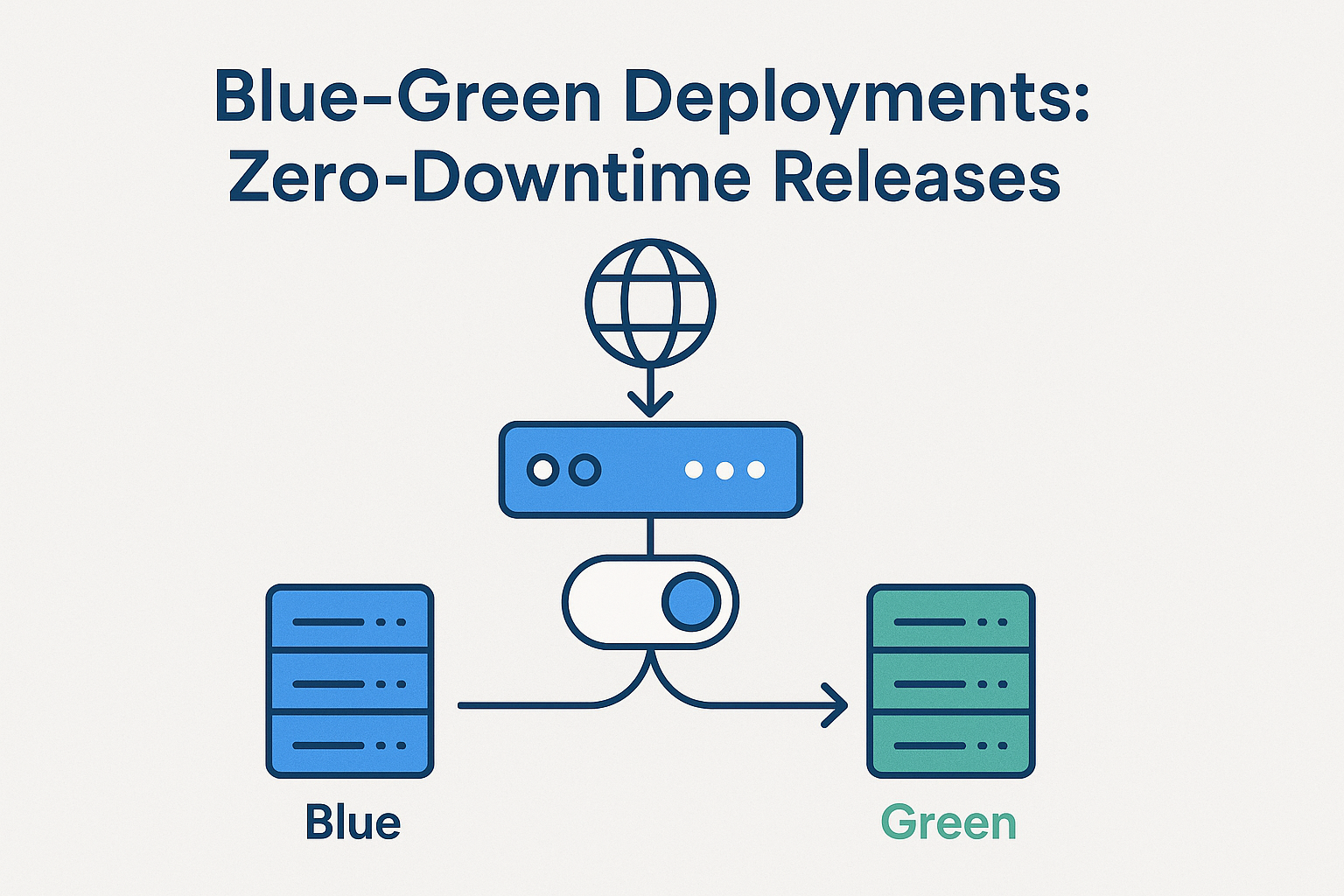
For most of last year our ECS deployments worked by just updating the task definition and letting the service do a rolling replacement. It mostly worked. Mostly. The window where old and new containers were both running at the same time caused occasional weirdness — database schema mismatches, half the requests hitting code that expected a new message format, that kind of thing. The real solution is blue/green deployments. AWS CodeDeploy supports them for ECS (EC2 launch type — Fargate ECS isn't GA yet as of this writing), and once I got the configuration right, it's been the most reliable deployment setup I've run.
What Blue/Green Gets You
The model: you have two identical environments (blue and green). Blue is live. You deploy to green. When green is healthy, you shift traffic from blue to green. If anything goes wrong, you shift back to blue instantly.
With CodeDeploy on ECS:
- Zero-downtime deployments — traffic shifts only after the new tasks pass health checks
- Instant rollback — one CLI command or button press to shift back to the old task set
- Baked-in traffic shifting — you can do canary (10% → 100%), linear (10% per 10 minutes), or all-at-once
The tradeoff: it's more infrastructure to configure and it costs slightly more (you're running double the tasks during deployment). Worth it.
The Setup
You need:
1. An ECS cluster (EC2 launch type, at least two container instances)
2. An Application Load Balancer with two target groups (blue and green)
3. An ECS service configured with CodeDeploy deployment controller
4. A CodeDeploy application and deployment group
Create the ECS service with the CodeDeploy controller — this can't be changed after creation:
{
  "serviceName": "myapp",
  "cluster": "production",
  "taskDefinition": "myapp:15",
  "desiredCount": 2,
  "deploymentController": {
    "type": "CODE_DEPLOY"
  },
  "loadBalancers": [
    {
      "targetGroupArn": "arn:aws:elasticloadbalancing:us-east-1:123456789012:targetgroup/myapp-blue/abc123",
      "containerName": "web",
      "containerPort": 5000
    }
  ],
  "networkConfiguration": {
    "awsvpcConfiguration": {
      "subnets": ["subnet-abc123", "subnet-def456"],
      "securityGroups": ["sg-abc123"]
    }
  }
}
The appspec.yml
This lives in your deployment artifact (typically zipped and uploaded to S3). It tells CodeDeploy which task definition and container to deploy, and which target groups to use:
version: 0.0
Resources:
  - TargetService:
      Type: AWS::ECS::Service
      Properties:
        TaskDefinition: <TASK_DEFINITION>
        LoadBalancerInfo:
          ContainerName: "web"
          ContainerPort: 5000
        PlatformVersion: "LATEST"

Hooks:
  - BeforeInstall: "arn:aws:lambda:us-east-1:123456789012:function:check-db-migrations"
  - AfterInstall: "arn:aws:lambda:us-east-1:123456789012:function:run-smoke-tests"
  - AfterAllowTestTraffic: "arn:aws:lambda:us-east-1:123456789012:function:validate-green"
  - BeforeAllowTraffic: "arn:aws:lambda:us-east-1:123456789012:function:pre-traffic-check"
  - AfterAllowTraffic: "arn:aws:lambda:us-east-1:123456789012:function:post-traffic-validate"
The <TASK_DEFINITION> placeholder gets replaced with the actual ARN by your deployment script before uploading. The hooks let you run Lambda functions at lifecycle stages — before install, after traffic shift, etc. I use AfterInstall to run smoke tests against the green target group before any production traffic goes to it.
Triggering a Deployment
Register the new task definition, substitute it into the appspec, upload to S3, then create the deployment:
#!/bin/bash
set -euo pipefail

IMAGE_TAG=${1:-latest}
CLUSTER=production
SERVICE=myapp
DEPLOY_BUCKET=my-deployment-artifacts

# Register new task definition with updated image
NEW_TASK_DEF=$(aws ecs register-task-definition \
  --family myapp \
  --cli-input-json file://taskdef.json \
  --container-definitions "[
    {
      \"name\": \"web\",
      \"image\": \"123456789012.dkr.ecr.us-east-1.amazonaws.com/myapp:${IMAGE_TAG}\",
      \"memory\": 512,
      \"portMappings\": [{\"containerPort\": 5000}]
    }
  ]" | jq -r '.taskDefinition.taskDefinitionArn')

echo "New task definition: ${NEW_TASK_DEF}"

# Substitute into appspec.yml
sed "s|<TASK_DEFINITION>|${NEW_TASK_DEF}|g" appspec.yml > appspec-deploy.yml

# Upload appspec to S3
aws s3 cp appspec-deploy.yml s3://${DEPLOY_BUCKET}/myapp/appspec.yml

# Create CodeDeploy deployment
DEPLOYMENT_ID=$(aws deploy create-deployment \
  --application-name myapp \
  --deployment-group-name myapp-production \
  --revision "revisionType=S3,s3Location={bucket=${DEPLOY_BUCKET},key=myapp/appspec.yml,bundleType=YAML}" \
  --description "Deploy ${IMAGE_TAG}" | jq -r '.deploymentId')

echo "Deployment started: ${DEPLOYMENT_ID}"
Watching the Traffic Shift
Monitor deployment status:
$ aws deploy get-deployment --deployment-id d-ABCDEF123
{
  "deploymentInfo": {
    "status": "InProgress",
    "deploymentOverview": {
      "Pending": 0,
      "InProgress": 2,
      "Succeeded": 0,
      "Failed": 0,
      "Skipped": 0,
      "Ready": 0
    }
  }
}
Watch the target group weights shift in the console or via:
$ aws elbv2 describe-target-health \
    --target-group-arn arn:aws:elasticloadbalancing:...:targetgroup/myapp-green/xyz789
With CodeDeployDefault.ECSAllAtOnce, traffic shifts immediately after green passes health checks. For production I use CodeDeployDefault.ECSLinear10PercentEvery1Minutes — shifts 10% of traffic to green, waits 1 minute, checks health, repeats. A bad deploy becomes obvious at 10% exposure rather than 100%.
Rolling Back
If something goes wrong, rollback is one command:
$ aws deploy stop-deployment \
    --deployment-id d-ABCDEF123 \
    --auto-rollback-enabled
Or configure automatic rollback in the deployment group — if CloudWatch alarms trigger during the deployment, CodeDeploy rolls back automatically. Set an alarm on your application error rate metric and let it save you.
Wrapping Up
The configuration overhead is real — more IAM roles, more infrastructure to set up, and debugging the first failed deployment takes some patience. But once it's running, the confidence you get from zero-downtime deployments with automatic rollback is worth every minute of setup. The days of "deploy and immediately watch the error rate" are over.